Using In a Game
For this section we’ll use pygame, but any of the supported engines will do provided you understand the language and basics.
This section assumes you have a basic understanding of using the command prompt and/or terminal. Engines with a graphical editor are not supported at the time of writing.
Pygame does not supoprt mesh deformation at the time of writing.
Table of Contents
Setup
Note: this is not comprehensive of all steps. Please read the provided links thoroughly.
- Ensure you have Python installed and running
- Make a folder (something like
skf_game) - Create and enter a virtual environment
- Install dependencies:
pip install pygame-ce
pip install skelform_pygame
pip install dacite
- Create a Python file (perhaps
game.py) and paste this into it:
import pygame
import skelform_pygame

pygame.init()

screen = pygame.display.set_mode((1280,720))

clock = pygame.time.Clock()
time = 0

#1 - load armature

while True:
    for event in pygame.event.get():
        if event.type == pygame.QUIT:
            pygame.quit()
            raise SystemExit
    screen.fill("black")

    #2 - get frame

    #3 - animate

    #4 - construct

    #5 - draw

    pygame.display.flip()
    clock.tick(120)
    time += clock.get_time() / 1000
Courtesy of https://www.pygame.org/docs/tut/newbieguide.html
Run the file with python game.py (or python3). If you see a black window
with pygame window at the top, then you’re all set!
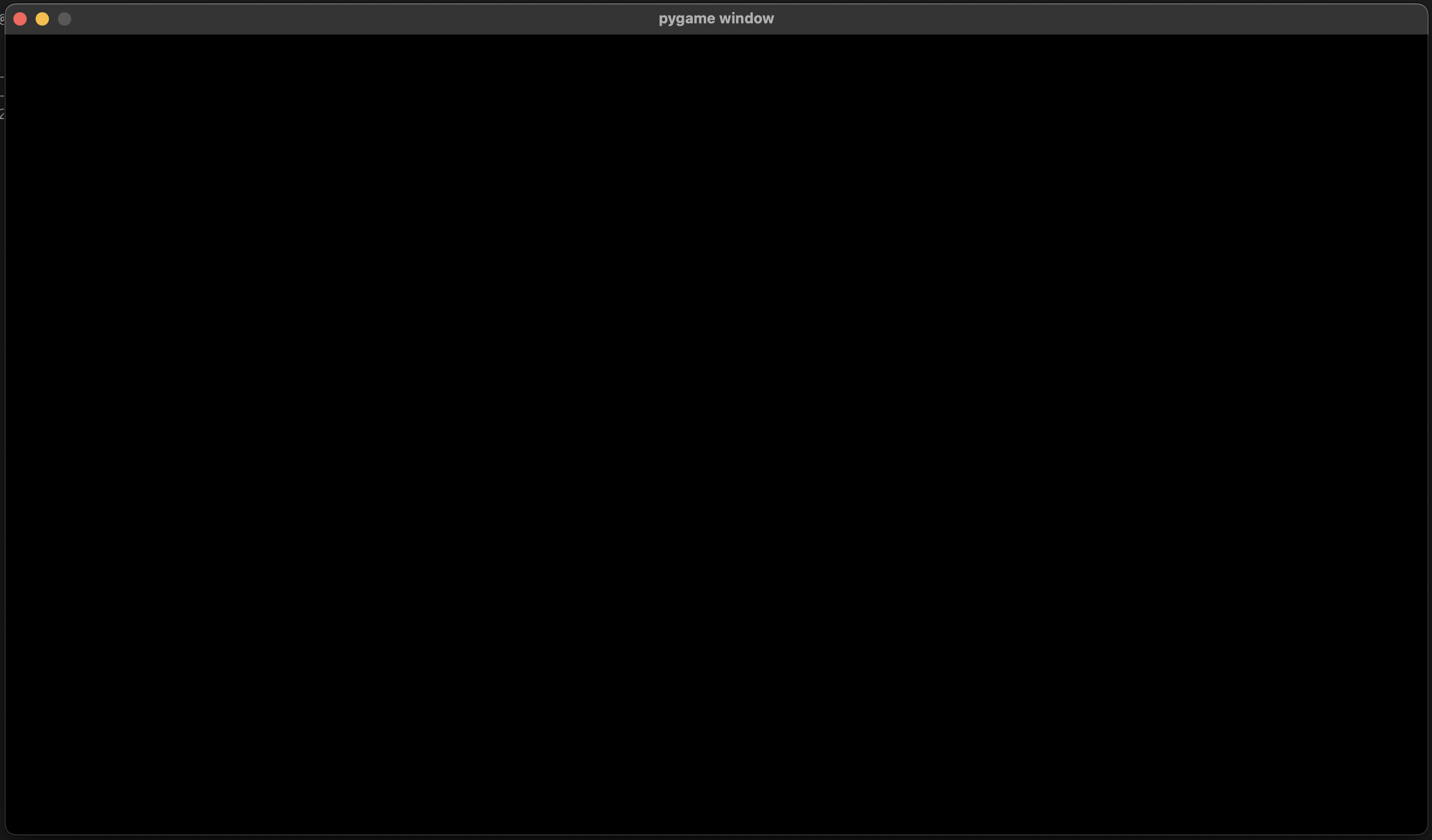
Lines that look like #1 - load armature will be used to guide you along the
way.
Loading the Armature
We’ll need to load the armature to use it. skelform_pygame provides a handy
load() function for that!
Underneath #1, paste this:
file_name = "skellina.skf"
(skellina, texAtlas) = skelform_pygame.load(file_name)
Edit file_name to be the name of the .skf file that you exported.
Animating & Drawing
With the loaded armature, we can use it as much as we’d like. In fact, let’s use it now!
Before we can animate it, we must get an approriate frame. We’ll use time in
our code to get a frame based on the time.
Underneath #2, paste this:
frame = skelform_pygame.time_frame(
    time,
    skellina.animations[0],
    False,
    True
)
This will give us an appropriate frame that we can use for the first animation.
Note that we have enabled looping since the last paramter is True. The one
before it is reversing, which we don’t need.
Now we can process the armature for our first animation.
Underneath #3, paste this:
skellina.bones = skelform_pygame.animate(
    skellina,
    [skellina.animations[0]],
    [frame],
    [0] # blend frames
)
This will move all bones accordingly with the first animation. Note the last array, which are the blend frames. These are used to smoothly transition from one animation to the other. For now we’ll leave this at 0.
Underneath #4, paste this:
constructed_bones = skelform_pygame.construct(
    skellina,
    screen,
    skelform_pygame.AnimOptions(
        pygame.Vector2(screen.get_width()/2, screen.get_height()/2)
    ),
)
This will give us the final result of bones, where we can also apply modifications (eg; change the position). Here, we’ve offset all bones to the center of the screen.
Underneath #5, paste this:
skelform_pygame.draw(
    drawn_bones,
    skellina.styles,
    textureAtlas,
    screen
)
This will draw the bones on screen. Finally!
Let’s see it in action. Run the file, and you should see your armature being animated!
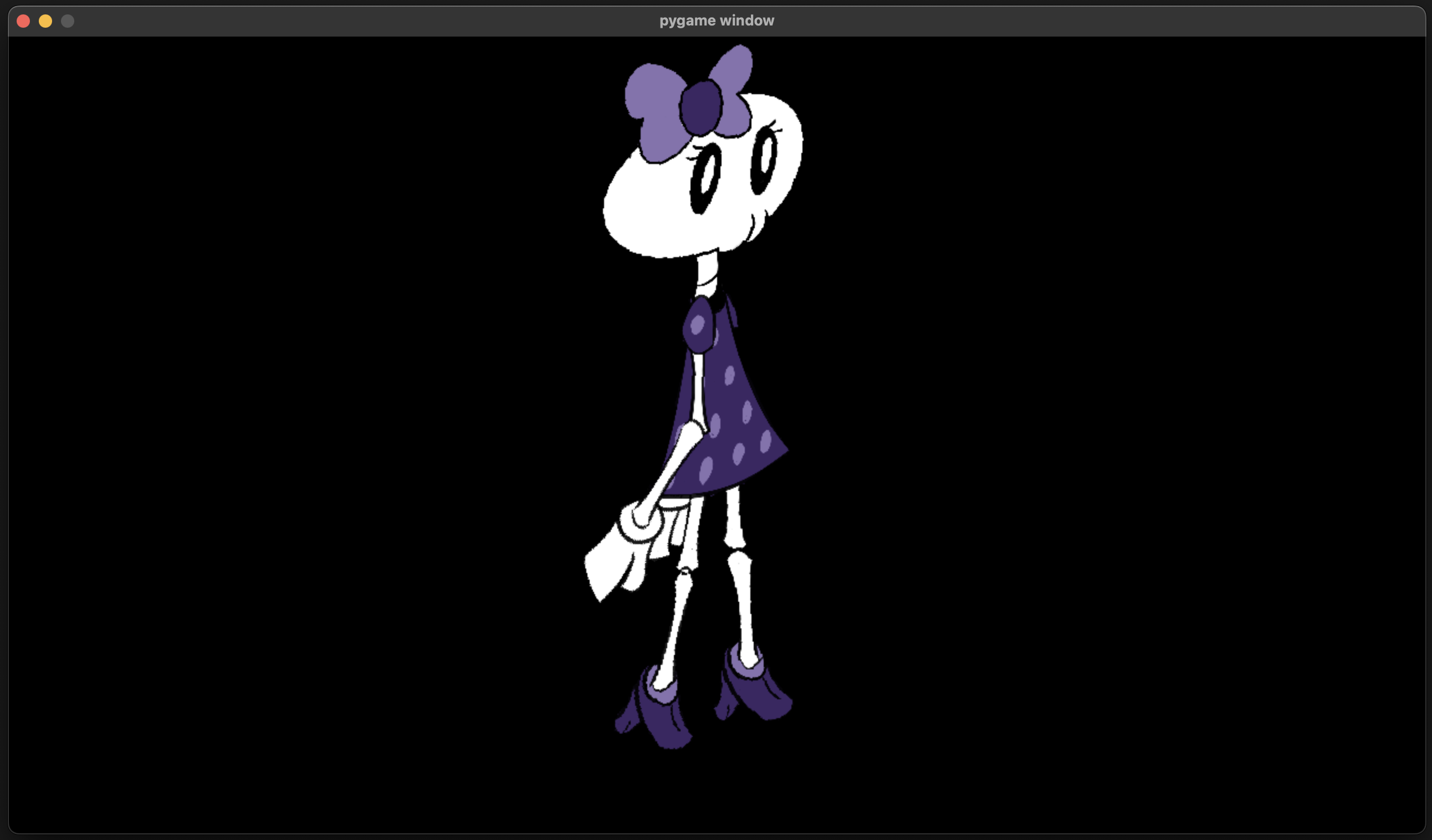
…and that’s it!
The armature’s position and scale can be controlled from AnimOptions in
animate(), so you can use eg; position to move it around. Try making it move
when pressing the left or right arrow keys!
Full Setup
This the final code with the above steps included:
import pygame
import skelform_pygame

pygame.init()

screen = pygame.display.set_mode((1280,720))

clock = pygame.time.Clock()
time = 0

#1 - load armature
file_name = "skellina.skf"
(skellina, texAtlas) = skelform_pygame.load(file_name)

while True:
    for event in pygame.event.get():
        if event.type == pygame.QUIT:
            pygame.quit()
            raise SystemExit
    screen.fill("black")

    #2 - get frame
    frame = skelform_pygame.time_frame(
        time,
        skellina.animations[0],
        False,
        True
    )

    #3 - animate
    skelform_pygame.animate(
        skellina,
        [skellina.animations[0]],
        [frame],
        [20]
    )

    #4. construct
    constructed_bones = skelform_pygame.construct(
        skellina,
        screen,
        skelform_pygame.AnimOptions(
            pygame.Vector2(screen.get_width()/2, screen.get_height()/2)
        ),
    )

    #4 - draw
    skelform_pygame.draw(
        constructed_bones,
        skellina.styles,
        texAtlas,
        screen
    )

    pygame.display.flip()
    clock.tick(120)
    time += clock.get_time() / 1000